Why does my Newline display keep turning off automatically?
If your Newline Touchscreen TV is turning off automatically during class, it is most likely the power saving mode. The power saving mode is designed to make the display turn off automatically if it hasn't been touched or written on for a set period of time. It is useful to save energy and make sure it isn't left on when it isn't being used, but if it keeps turning off when you don't want it to, then you can change the power saving settings.
How do I adjust the energy saving setting on my TV?
To adjust the energy saving settings, turn on your Newline TV. Make sure it is on the home screen. If your display isn't on the home screen, click the icon on the side of the screen that looks like a house, and once you do that, your TV should go to it's "Home Screen". It may look a little different than the picture below. 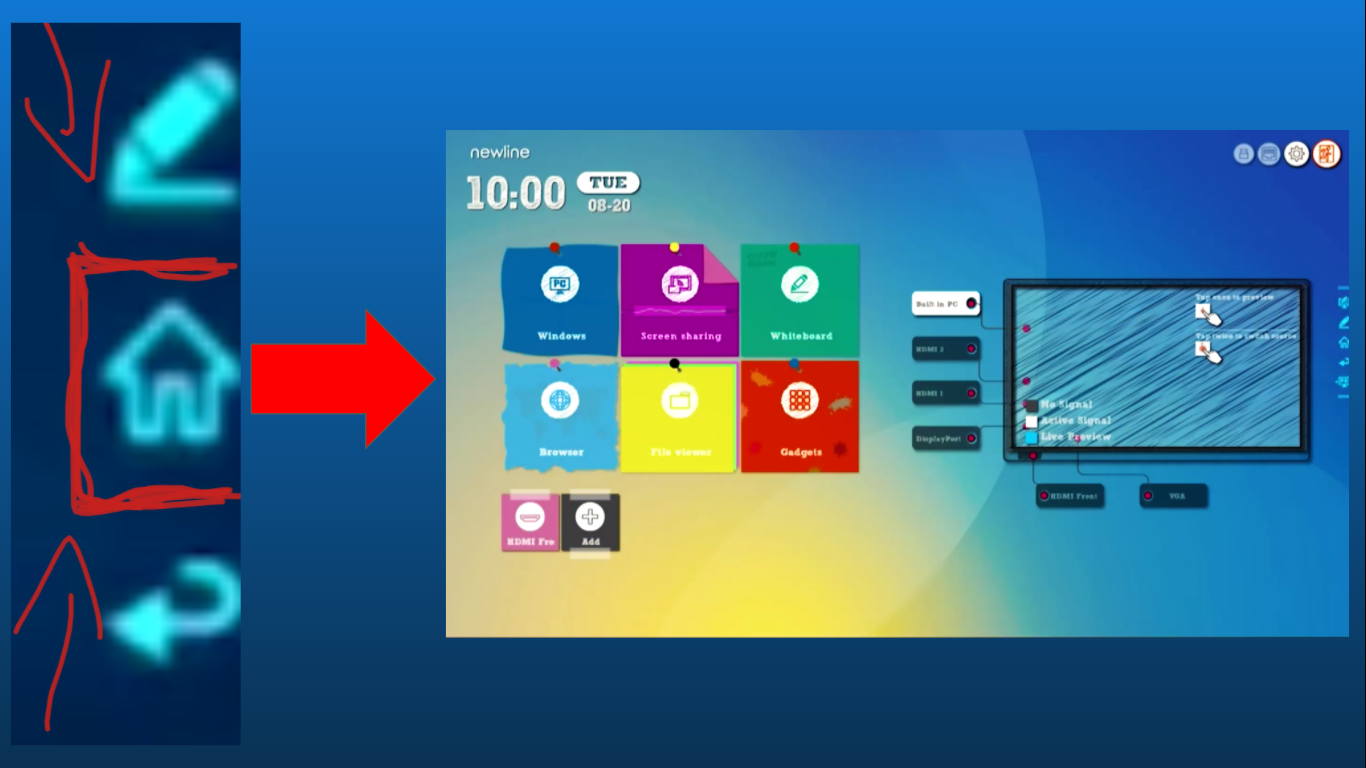 Once your TV is on the "Home Screen, click the settings gear in the upper right corner of the display.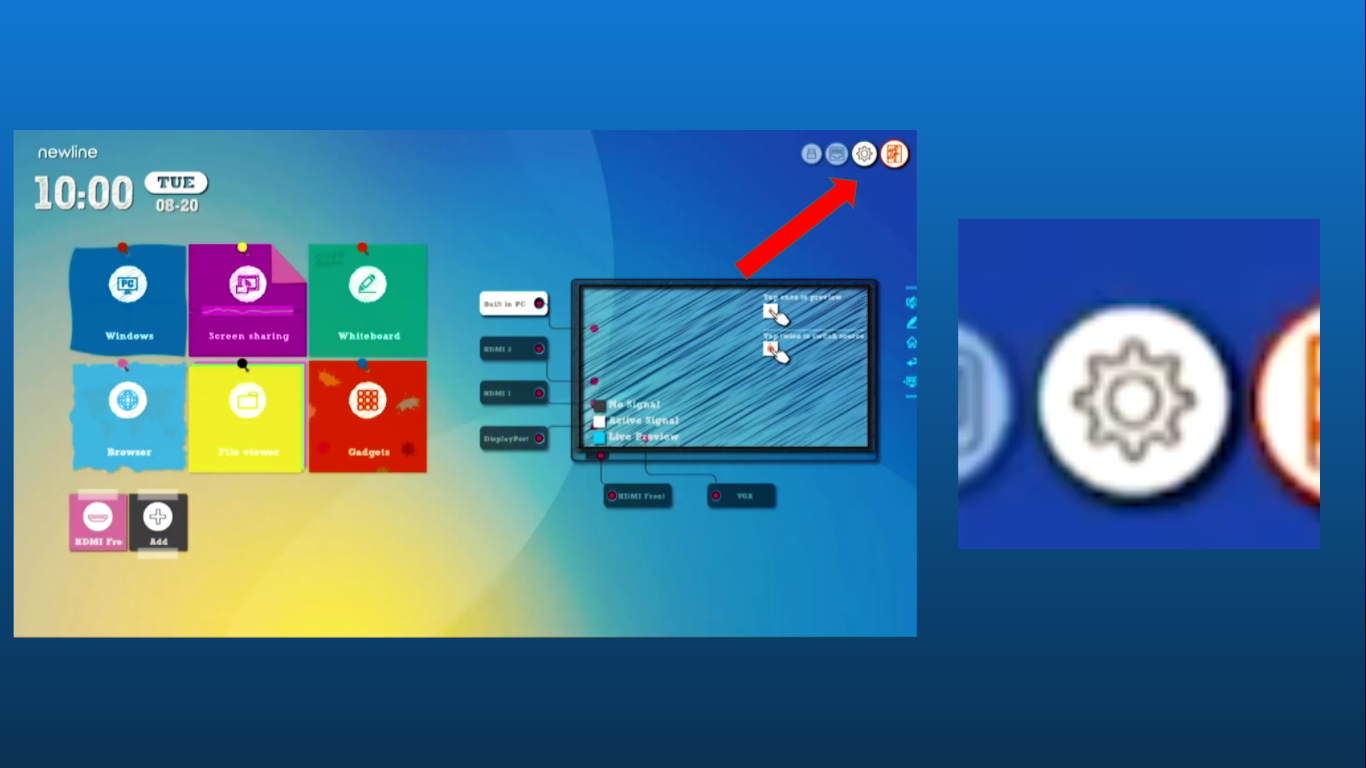
Then, when you're in the settings menu, click on the "Power ON/OFF Setting" section. 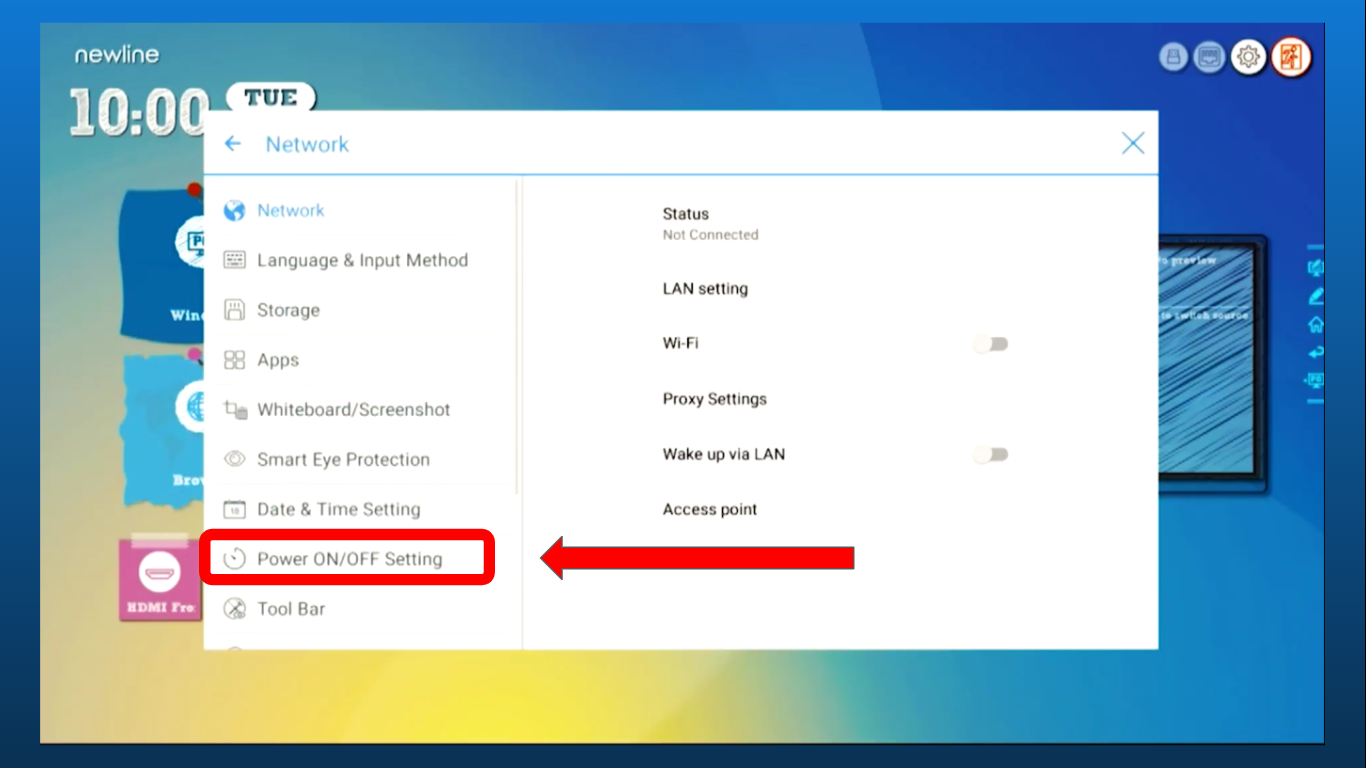 Once you're in the "Power ON/OFF" section of the settings menu, click on "Energy Saving".
 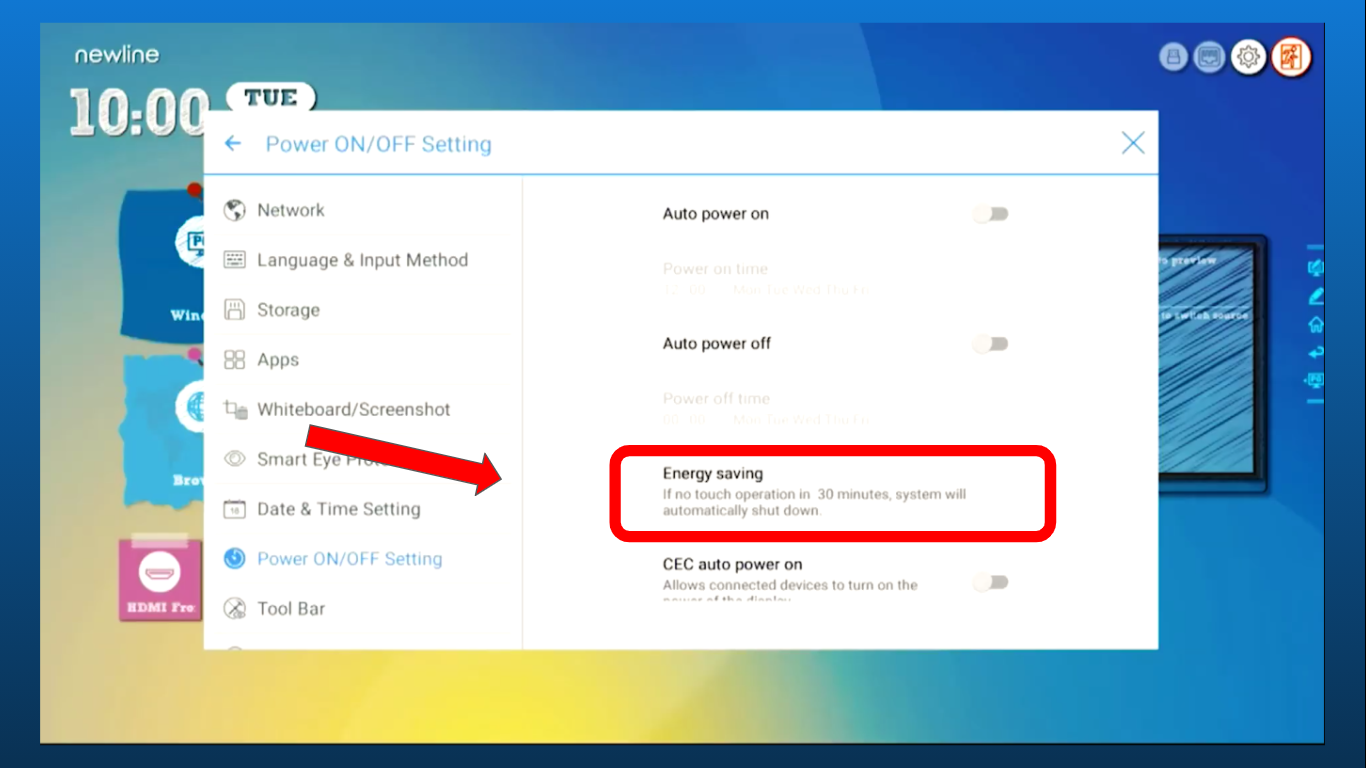 Once you're in the energy saving menu, you can choose a preset amount of time for it to automatically turn off, including "NEVER". Never means that it won't automatically turn off if it's left on, so make sure to turn it off when you're done using it. Input your amount in minutes and then click "OK" when you have finished inputting the time.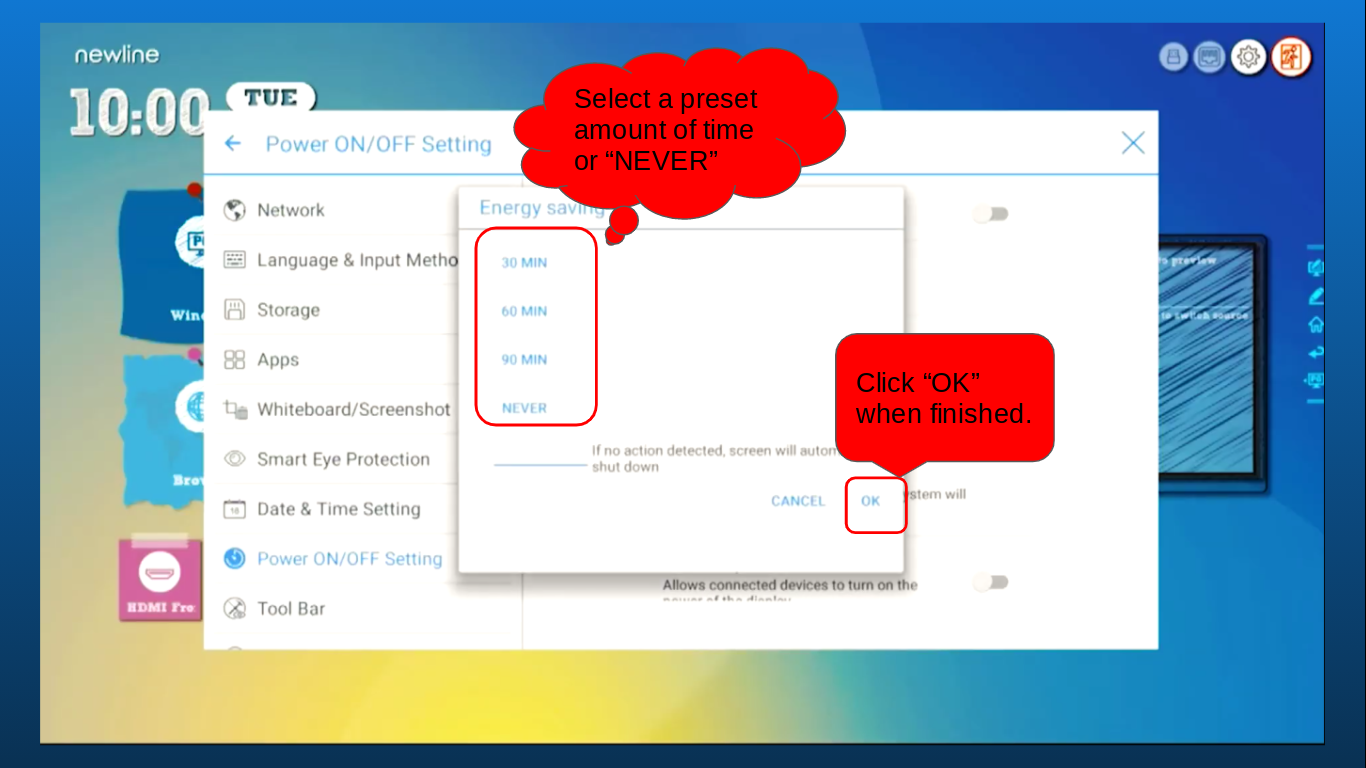
Once you've done that, you can close the settings by clicking the "X" in the upper right corner of the settings menu. 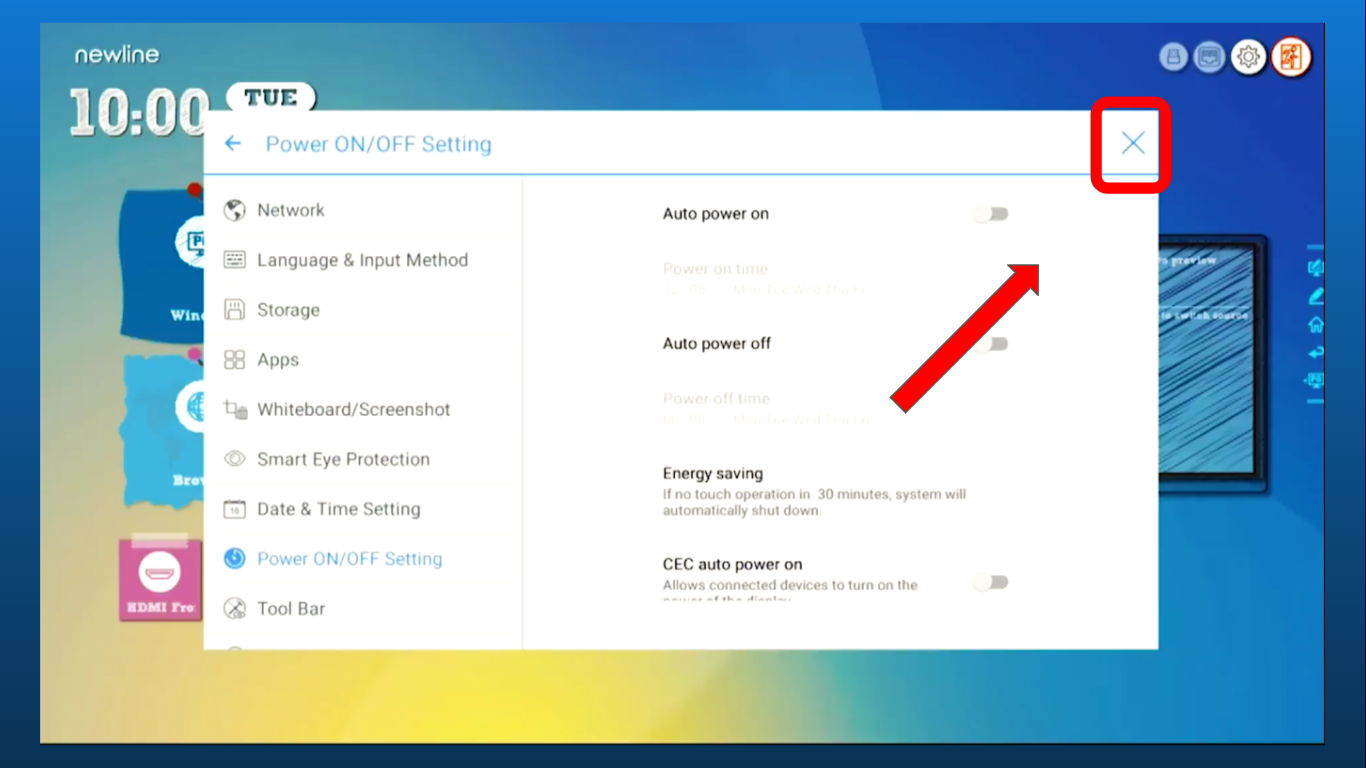 To return the TV to the source it was on (most likely your PC), simply click the source label (HDMI 2, HDMI Front, VGA, etc.) twice. If you don't know which source your PC is, it will most likely be an HDMI or VGA source that is lit up or white, not the "Built-in PC".
 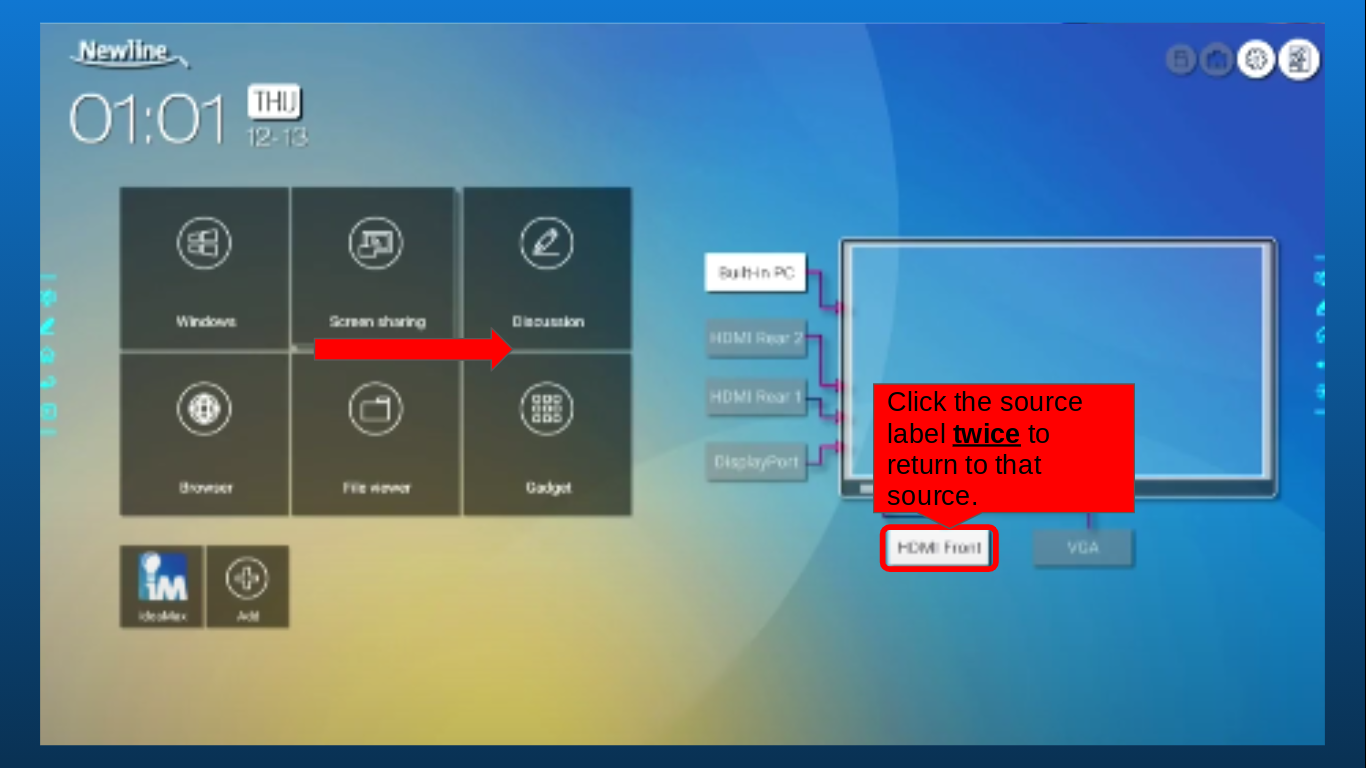 Your TV should now be functioning normally, except with the new power saving settings you just set.
If you have any questions, please contact your school's IT department or contact Brock.
How can Brock help me?
You can find help information on articles in the help center, on The Brocker's YouTube channel, or on The Brocker's website. You may also contact Brock by email, phone, help button or help center.
Was this article helpful?
That’s Great!
Thank you for your feedback
Sorry! We couldn't be helpful
Thank you for your feedback
Feedback sent
We appreciate your effort and will try to fix the article