Enable Touch & Pen functionality on Newline TV | Brock Teaches Teachers Tech
Why isn't the touchscreen working on my Newline TV?
If the touchscreen isn't working on your Newline TV as expected, or you just got a new computer or TV, then you may need to enable or re-enable the touch functionality. You can set up the Newline TV on your PC using Tablet PC Settings in the control panel. This article will explain how to enable or fix the touch functionality on your Newline TV.
How do I enable the touch functionality on my TV?
First, check that all the cables are connected correctly. To enable the touch functionality, go to your Windows PC (Computer). These steps will not work on Chromebooks. On your Windows PC, go to the search bar at the bottom. Click the search icon OR click on the "Type here to search" field and type "Control Panel". Click on the Control Panel app. 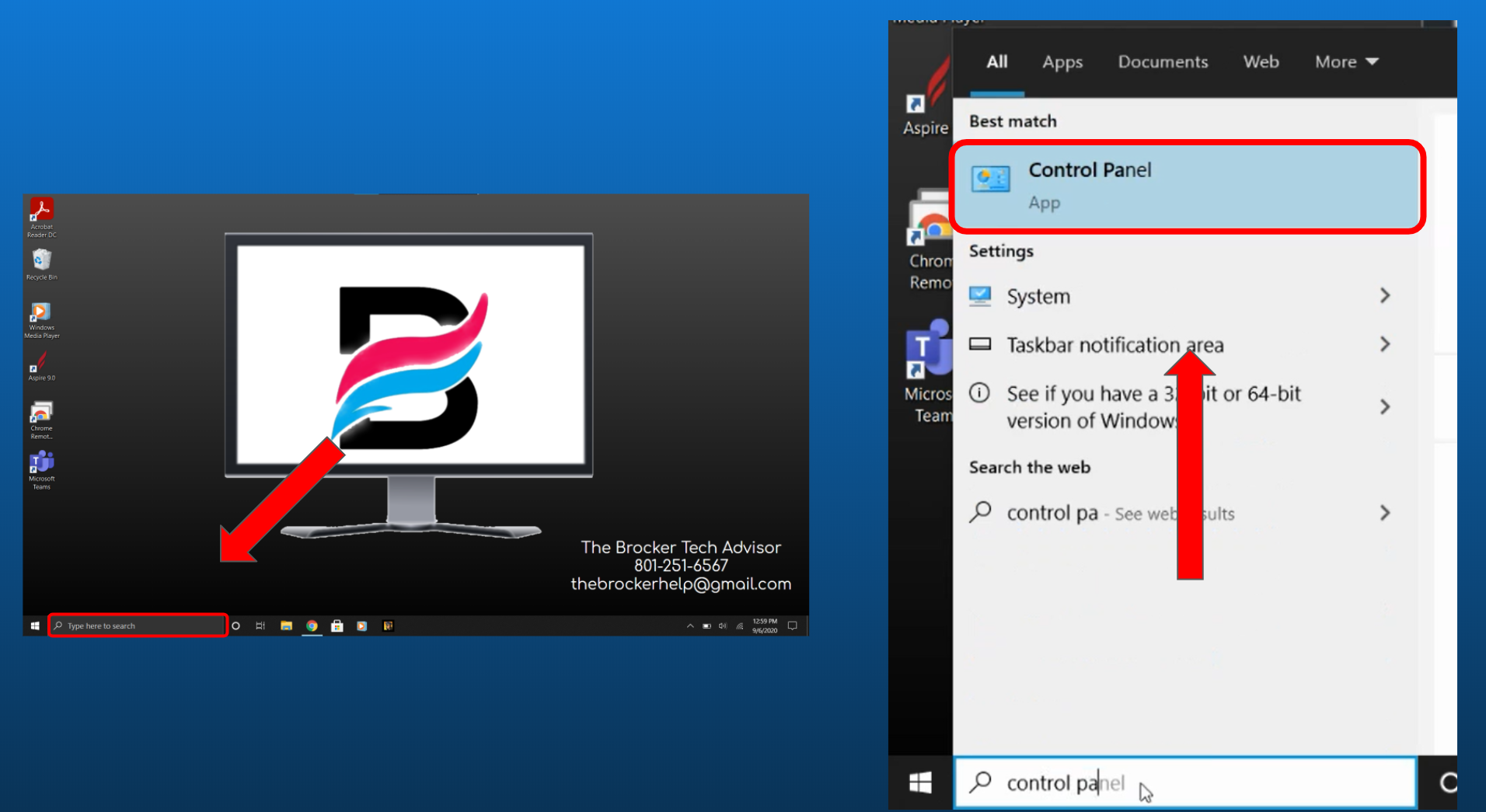
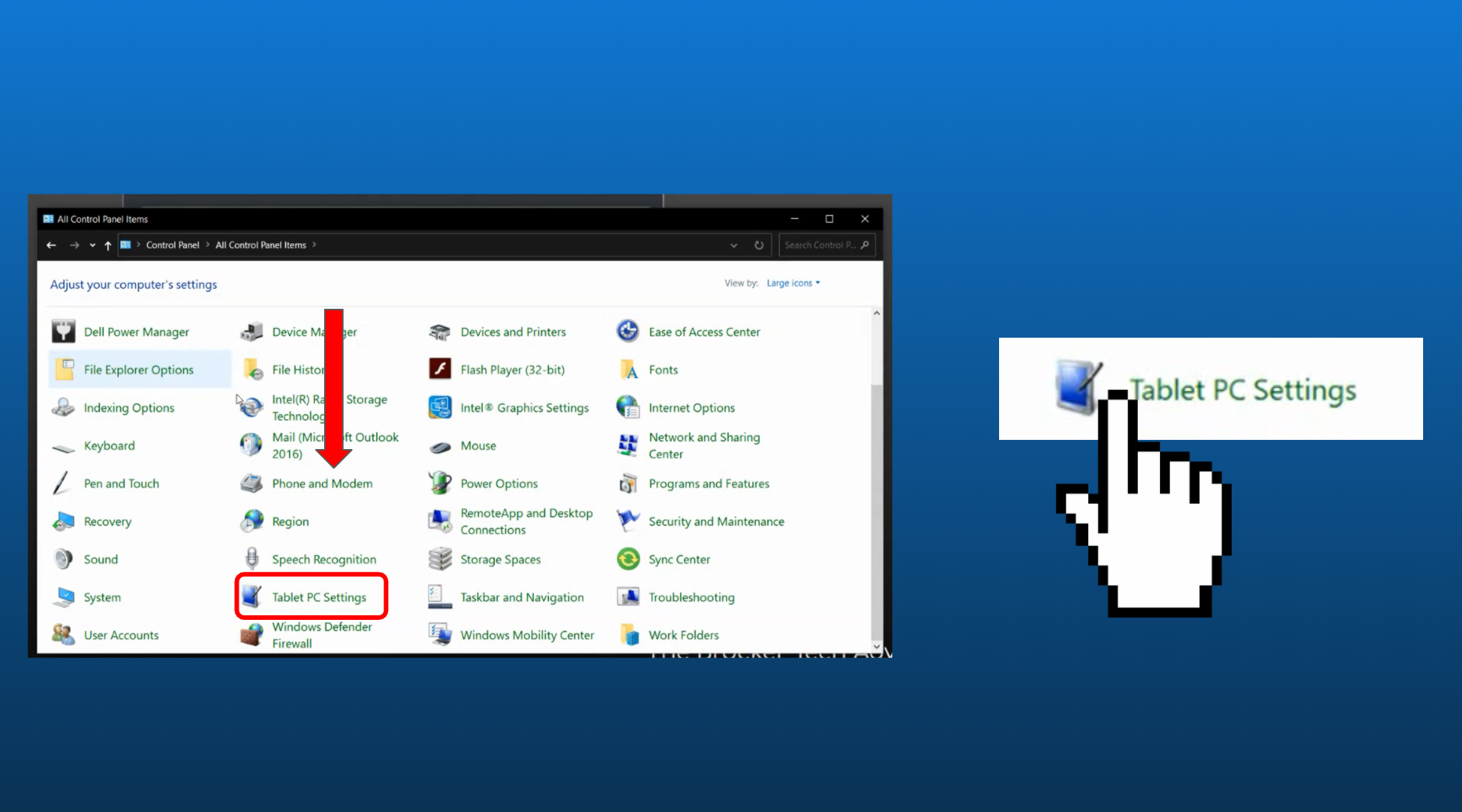
Once you are in the control panel app, go to the upper right corner and make sure the "View by" menu is set to "Large Icons". If it isn't, then click on the drop-down menu in the upper right corner and select "Large Icons". 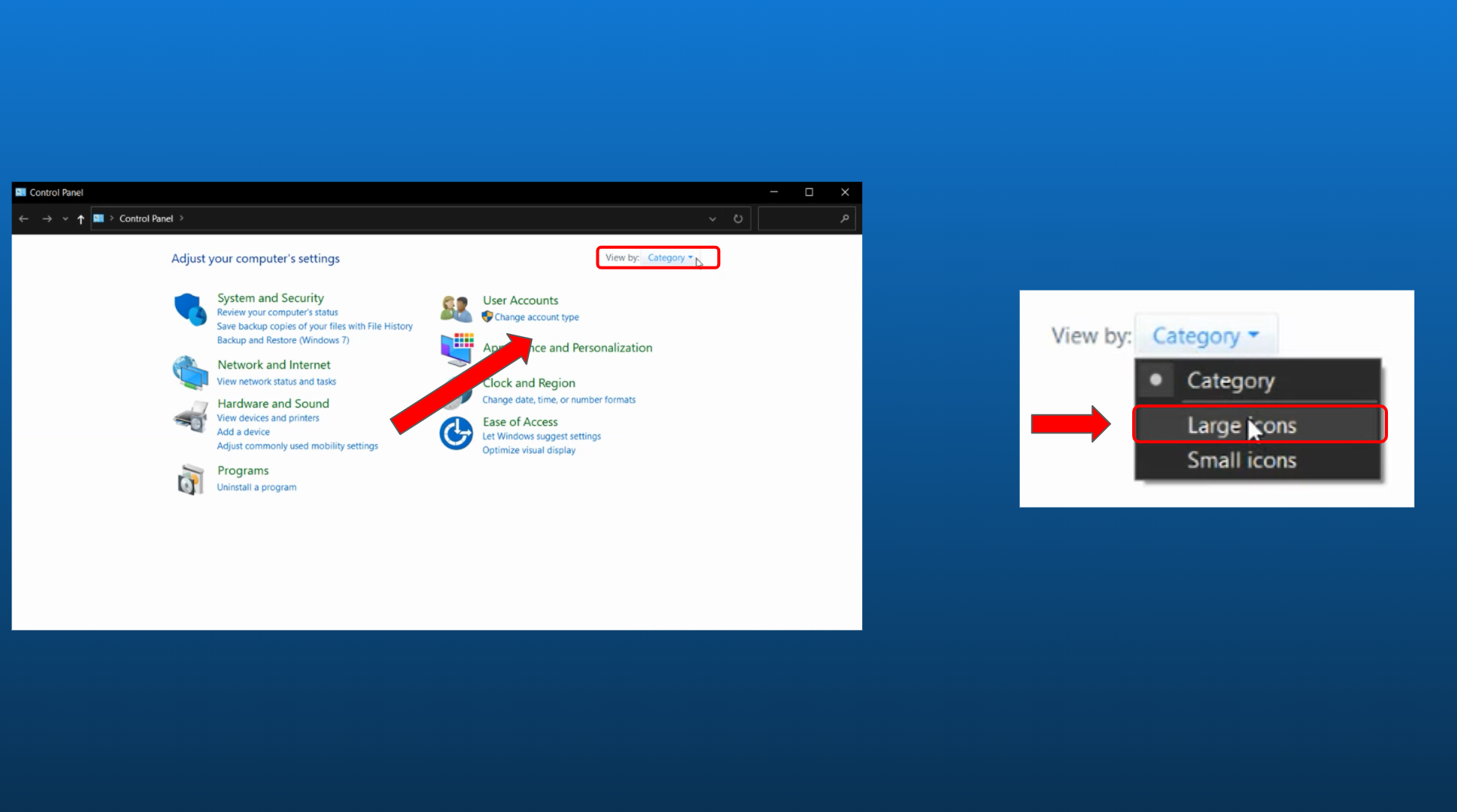 Once you have selected "Large Icons", there should be many options in the Control Panel. Scroll until you find the "Tablet PC Settings" option and click on it.
  In the Tablet PC Settings window that pops up, click on the "Display" drop-down menu and choose "Newline" as the display. It will most likely be numbered 2 or 3.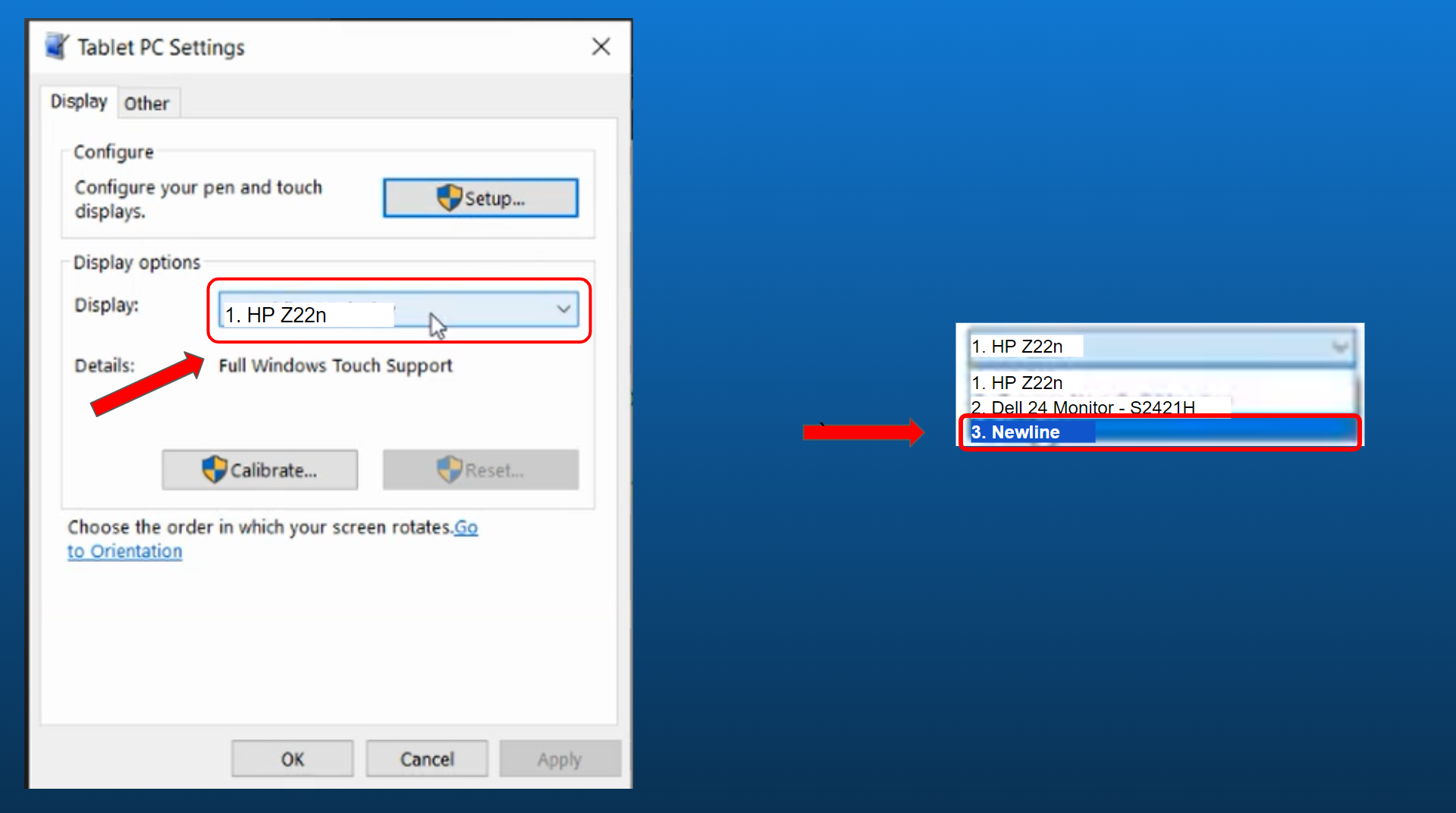
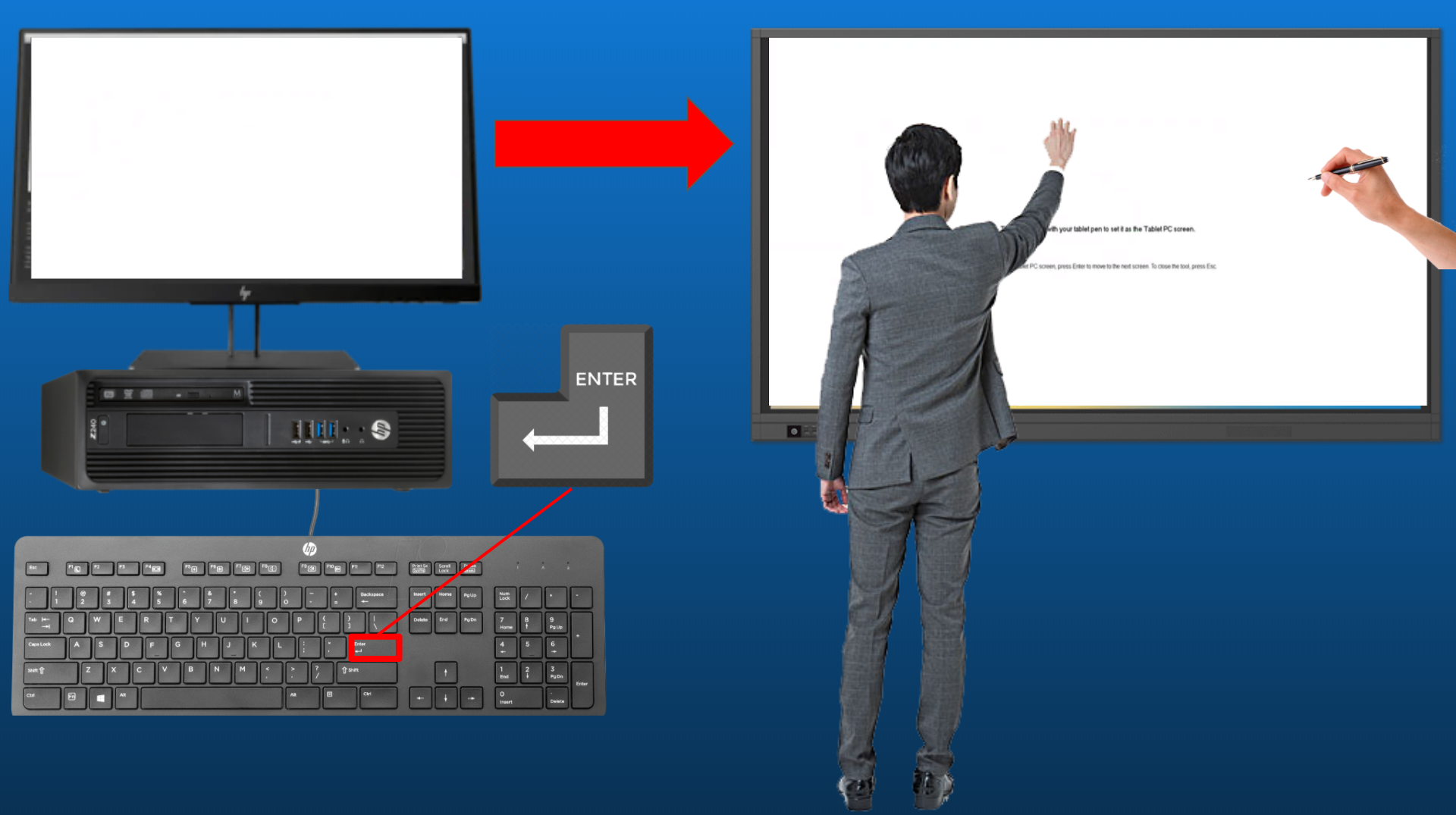
Once you have selected "Newline" as the display, click the "Setup" button on the top of the Tablet PC Settings menu. Then, a prompt should pop up asking you to choose either pen or touch input. Click "Touch input" to set up the touchscreen. However, if you want to use your pen or stylus to annotate to your PC from the TV (ex: PowerPoint annotations), you'll need to repeat these steps, but chose "Pen input" instead. However, only do this if the Newline TV already has touch input set up. 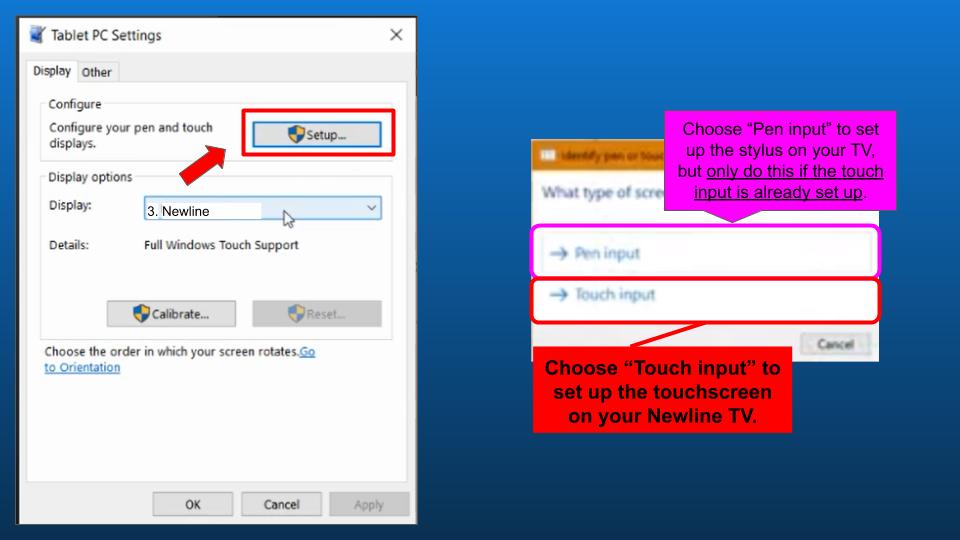 Once you do that, a white screen with instructions will pop up on your monitor. You will need to press the "Enter" key on your keyboard until the instructions/the on-screen text appears on your Newline TV. Once the text "touch this screen with one finger..." appears on your Newline TV instead of your monitor, tap anywhere on the Newline TV with one finger if you chose "Touch input". Don't touch the TV with your stylus/pen unless you previously chose touch input and the screen says "touch with your tablet pen...".
 Now, your Newline TV should be set up and working properly so you can touch the screen and use the pen. If this didn't work or you have any questions, feel free to contact Brock or your school's IT department.
How can Brock help me?
You can find help information on articles in the help center, on The Brocker's YouTube channel, or on The Brocker's website. You may also contact Brock by email, phone, help button or help center.
Was this article helpful?
That’s Great!
Thank you for your feedback
Sorry! We couldn't be helpful
Thank you for your feedback
Feedback sent
We appreciate your effort and will try to fix the article